Best GTA 6 Settings Guide: PS5, PS5 Pro & Xbox Series X|S Calibration for 60 FPS and Visual Clarity
Optimize your Grand Theft Auto VI experience: best graphics modes (Performance vs Fidelity), HDR display calibration, controller aim sensitivity, motion blur toggles, and DualSense haptic tuning.
Fine-Tuning Vice City: The Ultimate Launch Day Calibration Guide
Grand Theft Auto VI is the most graphically demanding and technically sophisticated console release of this generation. To ensure your time in the State of Leonida looks stunning while remaining responsive in high-speed car chases and gunfights, adjusting your in-game settings is essential.
Read our complete Digital Foundry Technical Analysis for hardware benchmark breakdowns.
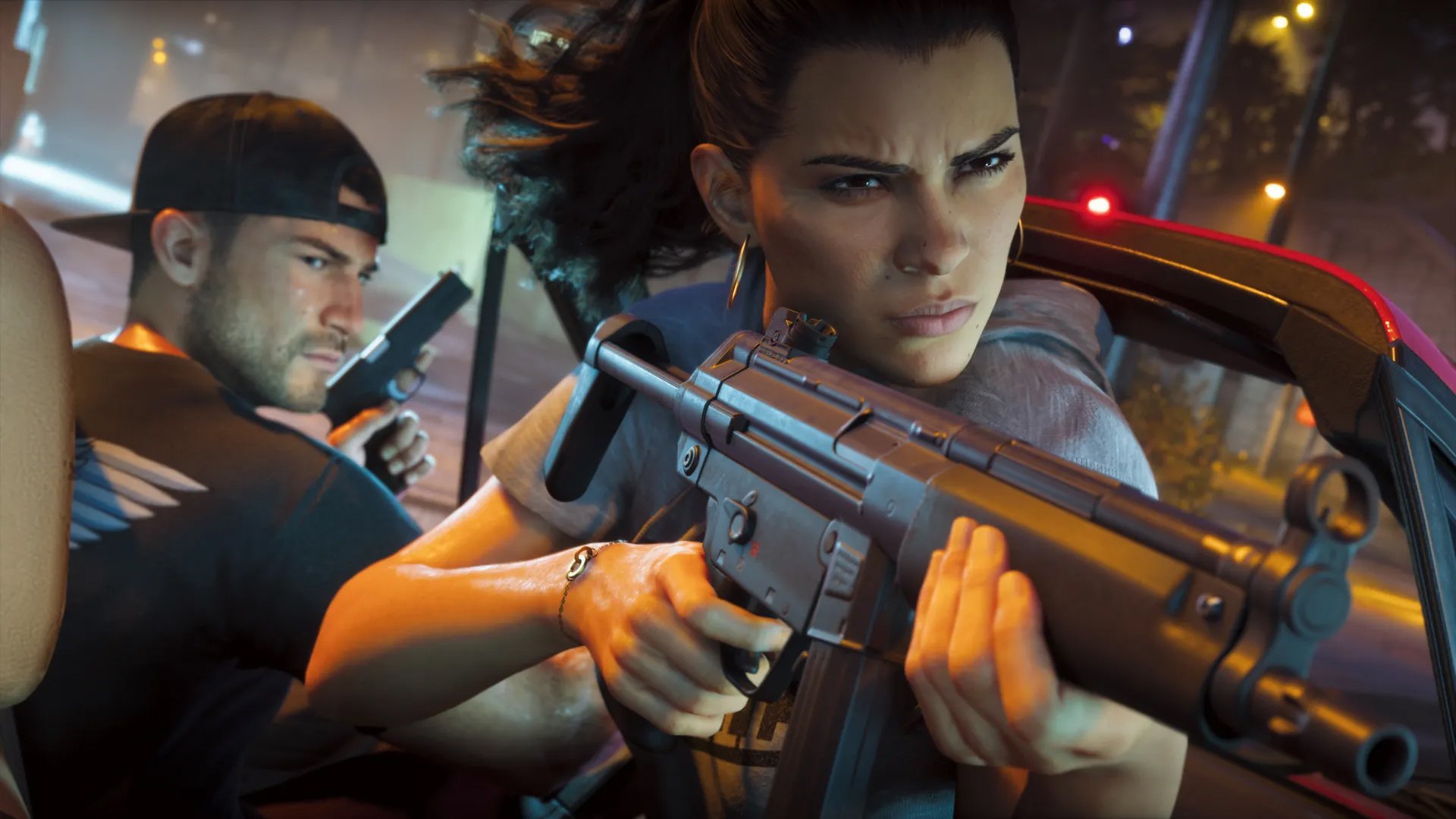
!Best GTA 6 Settings Calibration Guide
1. Graphics Mode Selection (Performance vs Fidelity)
- Performance Mode (Recommended for Combat & Driving): Targets 60 FPS utilizing dynamic 4K resolution upscaled via AMD FSR / Sony PSSR. Provides maximum input responsiveness for precision drive-bys and tight corner drifting.
- Fidelity Mode (Recommended for Photography & Cinematic Immersion): Delivers native 4K with ray-traced reflections, volumetric atmospheric lighting, and maximum crowd density locked at 30 FPS.
- PS5 Pro Performance Pro Mode: Unlocks native 60 FPS with full ray tracing enabled simultaneously using PlayStation Spectral Super Resolution (PSSR).
2. Recommended Visual & Camera Settings
| Setting | Recommended Value | Why You Should Change It |
|---|---|---|
| Motion Blur | Off (0%) | Eliminates visual smear during rapid camera pans and high-speed car chases. |
| Film Grain | Off (0%) | Provides a sharp, clean image and prevents pixel noise in dark night scenes. |
| Chromatic Aberration | Off | Removes artificial lens distortion at the edges of the display. |
| Field of View (First Person) | Max (90°) | Expands peripheral vision inside car cockpits and interiors. |
| Vehicle Camera Height | High | Gives you an elevated viewpoint over traffic to spot roadblocks and police spikes. |
3. Controller Deadzones & Aim Assist Calibration
Default controller settings in GTA 6 can feel slightly sluggish due to realistic momentum physics:
- Look Sensitivity (Horizontal / Vertical): Increase from 50% to 65%.
- Aim Down Sights (ADS) Sensitivity: Set to 55% for smooth sniper tracking.
- Stick Deadzones (Inner): Lower from 15% to 5% (or lowest without stick drift) to eliminate latency.
- Aim Assist Mode: Use Assisted Aim - Partial to retain snap-on target acquisition without locking onto unwanted pedestrians.
4. HDR Display Calibration
Vice City's neon lights look breathtaking on OLED displays: - Peak Brightness: Match your TV's exact nits rating (e.g. 800 nits for LG C3/C4). - Paper White: 200 - 240 nits for natural daylight sun in the Grassrivers.